Diff View
Review and manage code changes
The diff view shows file changes for the task you have open. Use it to review what an agent changed, stage or discard files, commit, push, and open pull requests without leaving Emdash.
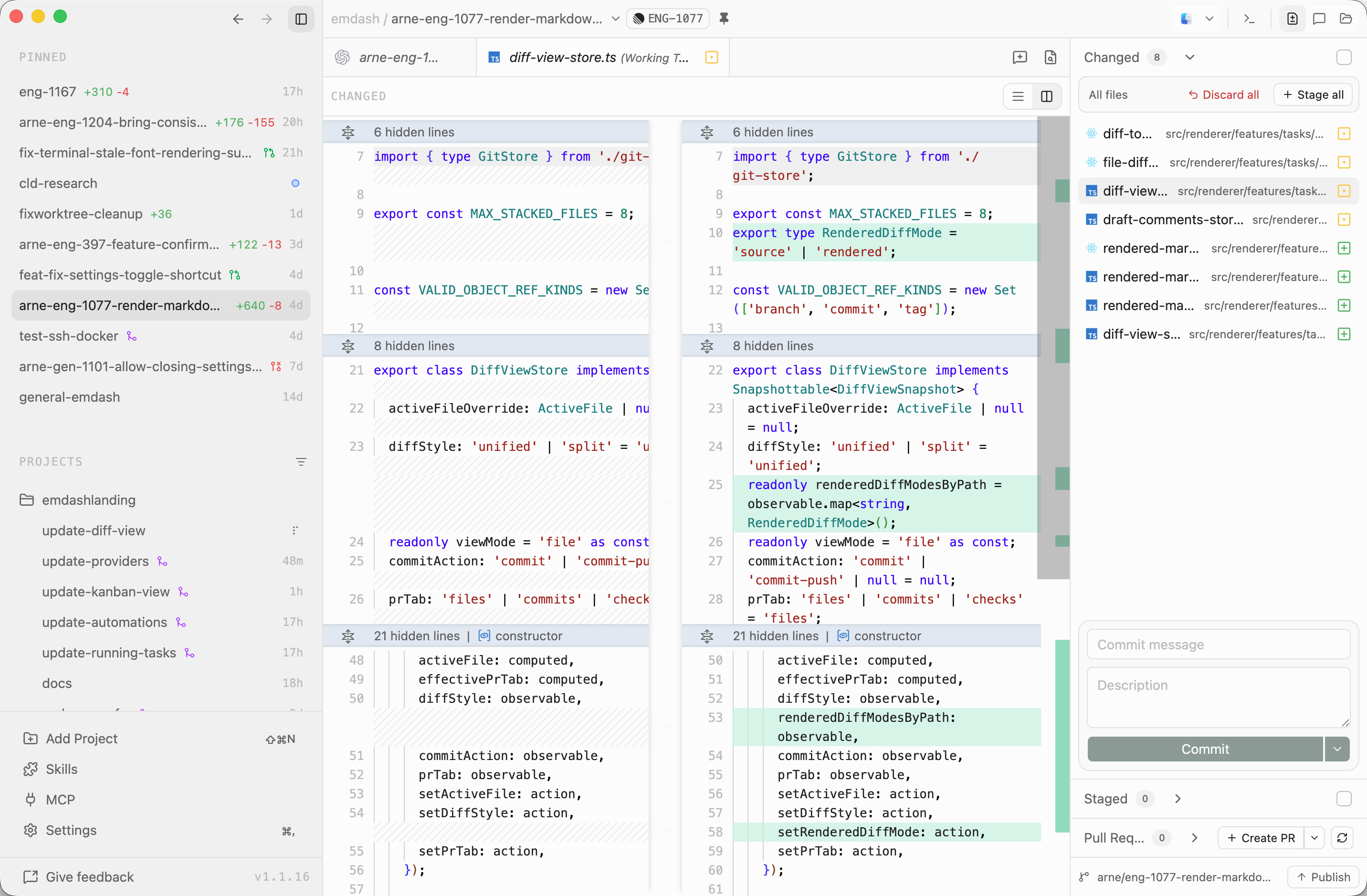
Where to Find It
Open a task, then click the Changes icon in the task titlebar. This opens the right sidebar to the task's Changed, Staged, and Pull Requests sections.
The changes list updates automatically from workspace file and Git events. When an agent edits files, stages changes, or commits, Emdash refreshes the panel.
Select a file in the changes list to preview its diff in the main task area. Double-click a file to keep that diff open as a tab.
What You See
The Changed section shows unstaged workspace changes. The Staged section shows files already added to the next commit. Each file row includes:
- File path and type icon
- A status icon for added, modified, deleted, renamed, or conflicted files
The Pull Requests section shows pull request data for the task branch when a GitHub remote is configured and the project has a selected GitHub account. It can show PR files, commits, checks, comments, and merge state. If there is no GitHub remote, GitHub account, or pull request yet, the section shows an empty state.
The footer shows Git status for the task branch, including fetch, pull, push, publish, or add-remote actions when they apply.
Actions
Stage files: Select changed files and click Stage, or click Stage all to add every unstaged change.
Unstage files: Select staged files and click Unstage. When staged files are selected, Unstage all is also available.
Discard changes: Select changed files and click Discard, or click Discard all to reset all unstaged changes. Emdash asks for confirmation before discarding.
View a diff: Select a file to preview it. Double-click to open it as a persistent tab. Use the toolbar to switch between unified and split diff layouts.
Commit: Enter a commit message and optional description, then choose Commit, Commit & Push, or Commit & Create PR when that option is available.
Create PR: Use Commit & Create PR from the commit card, or create a pull request from the Pull Requests section. PR creation requires a GitHub remote and selected project GitHub account, and is disabled when the task already has an open PR. If the branch needs to be pushed first, the PR dialog offers Push & Create PR.
Inline Editing
Unstaged file diffs can be edited directly on the modified side of the diff. Press ⌘S on macOS or Ctrl+S on Windows/Linux to save the file back to disk.
Staged, PR, and other Git comparisons are read-only because both sides come from Git objects rather than editable files.