Prompts
Save reusable prompts and insert them into task conversations
Prompts are reusable instructions you can send to agents from task prompt menus. Use them for repeatable workflows like code review, performance checks, release prep, bug investigation, or any instruction you send often.
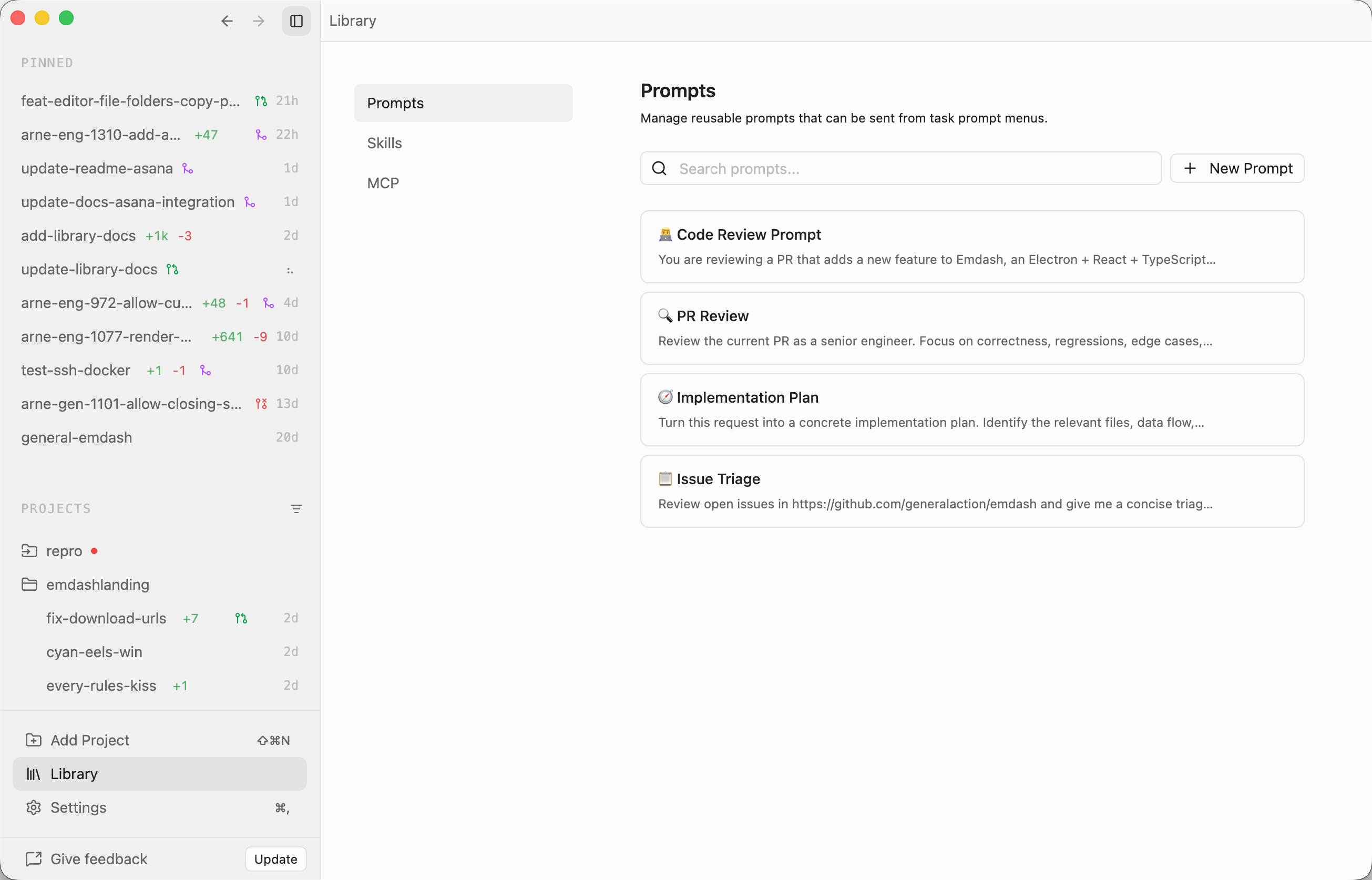
Getting Started
Open Library from the left sidebar, then select Prompts.
The prompt library includes a default Review prompt. You can edit it, delete it, or add your own prompts.
Creating a Prompt
- Click New Prompt
- Enter a title, such as
Security review - Write the prompt text the agent should receive
- Click Save
Prompt titles appear in prompt menus, so keep them short and recognizable. The prompt body can be as detailed as needed.
Editing and Deleting Prompts
Click a prompt row to edit its title or prompt text. Use the delete action on a prompt row to remove it from the library.
Use the search box to filter prompts by title or prompt text.
Using Prompts in Tasks
Prompt library entries appear in the Prompts menu in task prompt areas, including new task creation and existing task conversations.
Select a prompt from the menu to insert its text into the current message. If the message already has text, Emdash appends the selected prompt below the existing content.
Tips
- Create focused prompts for specific workflows instead of one large catch-all prompt.
- Use clear titles so the right prompt is easy to find from the task prompt menu.
- Keep prompts agent-neutral when you plan to use them across multiple providers.