Tmux Sessions
Persistent agent and terminal sessions with tmux
Optionally wrap agent chats and task terminals in tmux so they survive disconnects and Emdash restarts. When enabled, each chat and terminal runs inside a named tmux session that keeps the process alive in the background even if the connection drops.
Why use this
Without tmux, if Emdash quits or an SSH connection drops, the active agent or terminal process can exit and the terminal view goes blank. You lose any in-progress work the process was doing.
With tmux enabled, the process keeps running inside its tmux session. When Emdash reconnects, whether after an app restart or an SSH reconnect, it reattaches to the same session and picks up where it left off.
This is especially useful for:
- Remote projects over SSH — network interruptions don't kill long-running agent tasks
- Long-running sessions — quit Emdash, come back later, the agent or terminal command is still working
- Unreliable connections — WiFi drops, VPN reconnects, laptop lid closes
Enabling tmux
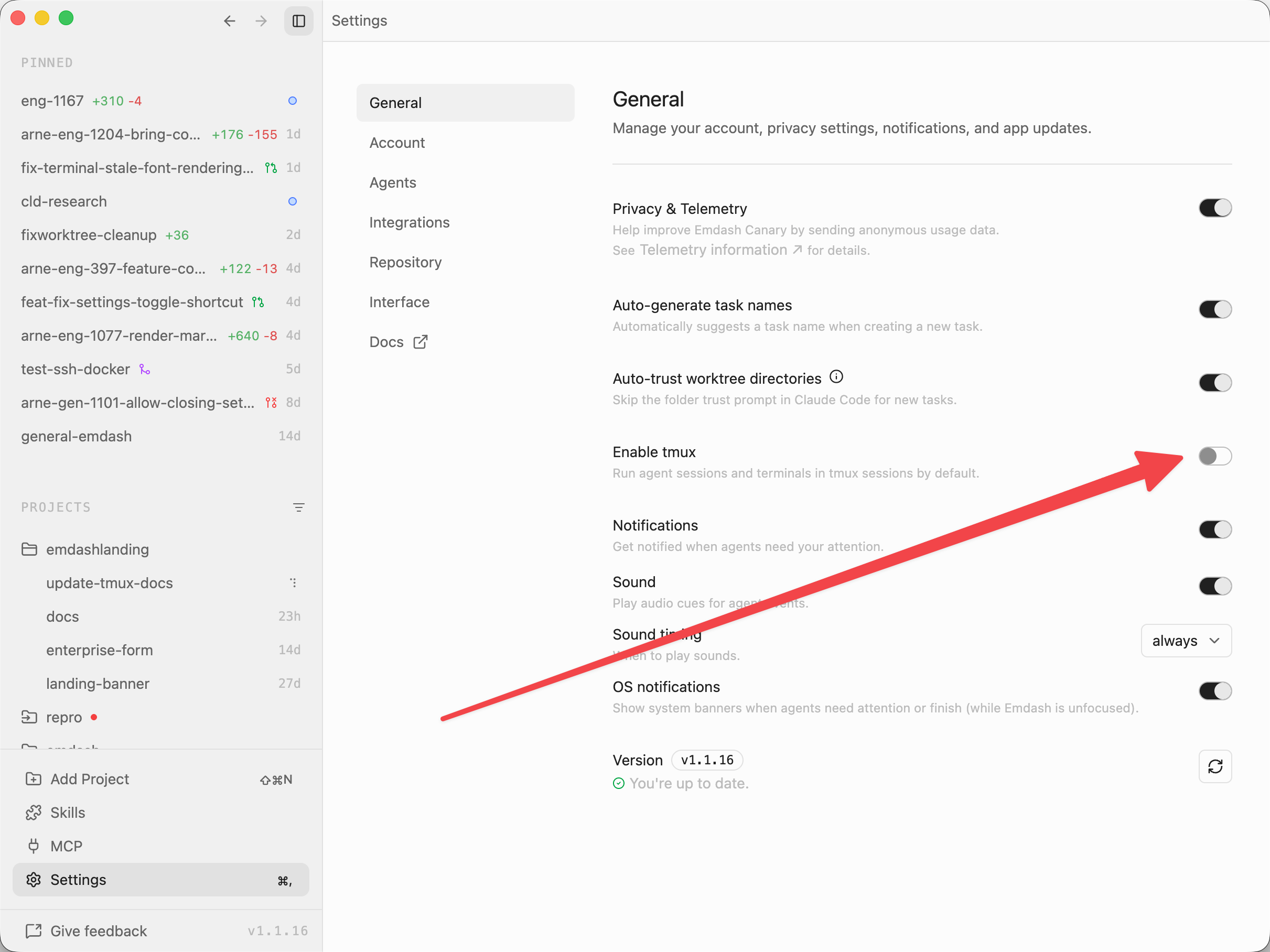
To enable tmux by default for new projects, open Settings → General and turn on Enable tmux.
For an existing project, open Project Settings and turn on Enable tmux for that project. The app-wide setting only affects newly initialized project settings; existing projects keep their own toggle.
tmux must be installed on the machine where the process runs: your local machine for local projects, or the remote host for SSH projects. For local Windows projects, Emdash does not wrap sessions in tmux. For SSH projects, tmux can still be used when it is installed on the remote host.
How it works
When Emdash starts a tmux-backed lifecycle script, agent chat, or task terminal:
- Emdash derives a deterministic PTY session ID from the project, task, and chat or terminal ID
- The tmux session name is
emdash-plus an encoded version of that PTY session ID - Emdash checks whether the tmux session already exists, creates it if needed, enables mouse support, sets a large history limit, and attaches to it
- If the connection drops, tmux keeps the process running in the background
- When Emdash reconnects, it attaches to the same tmux session
Because the session name is deterministic, Emdash can reconnect to the correct session after a restart or SSH reconnect.
Mixing tmux and non-tmux sessions
tmux is resolved when a task's session providers are created or rehydrated. If you change the tmux setting while a task is already live:
- Existing live sessions keep running the way they were started
- New chats or terminals inside that already-live task keep using the setting from when the task was provisioned
- New or rehydrated tasks use the current project toggle
- After an Emdash restart, task sessions are hydrated using the current project toggle
There's no conflict between tmux and non-tmux sessions in the same project.
Cleanup
When you delete a chat, terminal, or task, Emdash kills the associated tmux session automatically.
When you quit Emdash while tmux remains enabled for the project, tmux sessions are left running. On next launch, Emdash reattaches.
If you need to manually clean up tmux sessions, use the standard tmux commands:
# List emdash sessions
tmux ls | grep emdash

# Kill a specific session
tmux kill-session -t emdash-...

# Kill all emdash sessions
tmux ls | grep emdash | cut -d: -f1 | xargs -I{} tmux kill-session -t {}
Requirements
- tmux installed and on PATH (any recent version)
- macOS or Linux for local projects
- For SSH projects, tmux installed on the remote host
Scrollback
When tmux is active, durable terminal state and scrollback are managed by tmux. Emdash still streams terminal output into the app, but the persistent session state lives in tmux.