Project Settings
Configure how Emdash creates and runs tasks for a project
Configure Project Settings in the UI. Settings are scoped to one Emdash project.
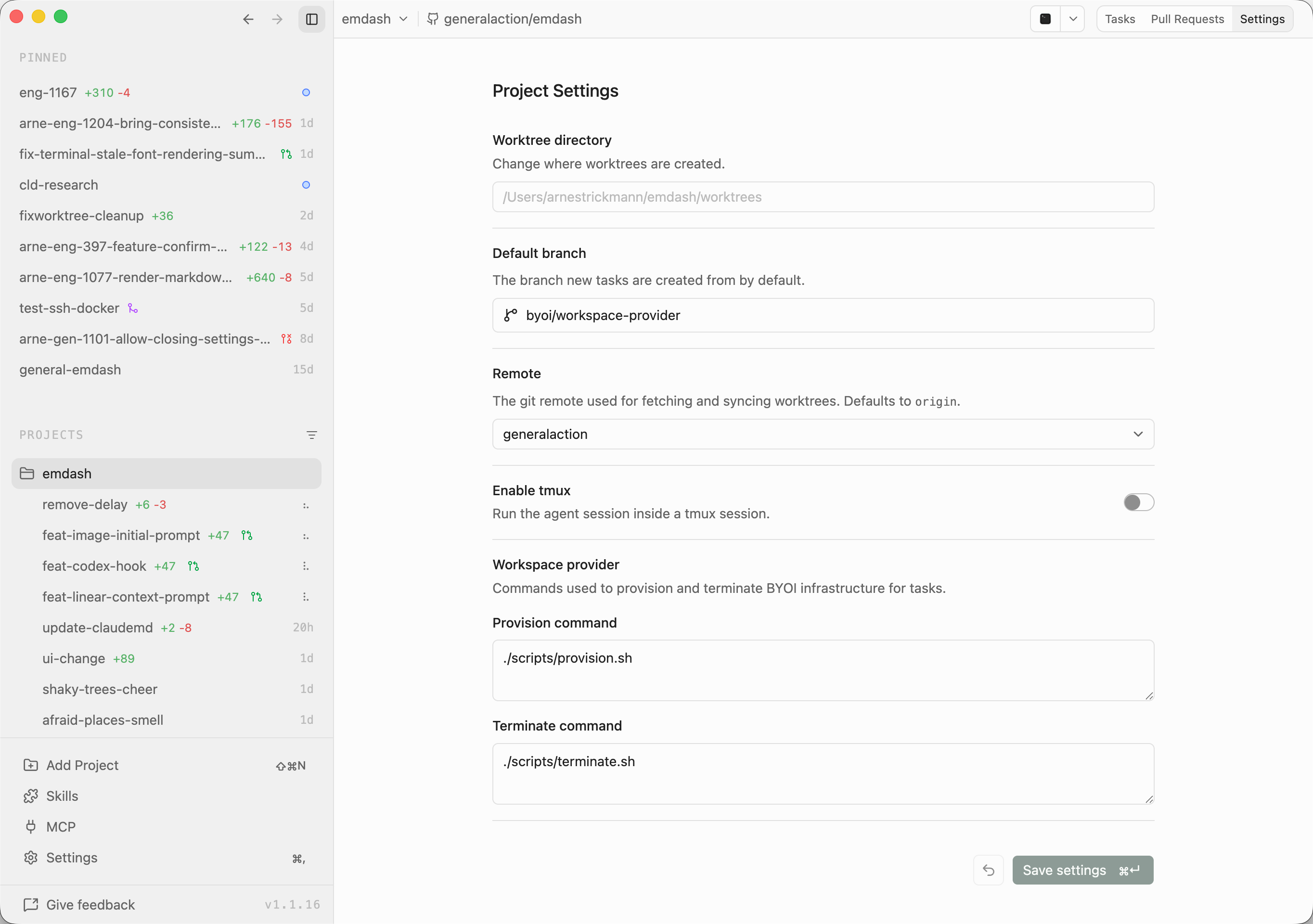
What you can configure
| Setting | What it does |
|---|---|
| GitHub account | The account Emdash uses for GitHub issues, pull requests, comments, checks, and repository creation in this project. |
| Worktree directory | Where Emdash stores task worktrees for this project. |
| Default branch | The branch new tasks are created from by default. |
| Base remote | The remote Emdash fetches from, uses for task base branches and pull request targets. |
| Push remote | The remote Emdash pushes task branches and commits to. Defaults to the base remote. |
| Tmux | Keeps task terminals and agent sessions running across app restarts. |
| Workspace provider | Custom commands for creating and terminating task infrastructure. |
| Preserve patterns | Copies matching untracked or gitignored files such as .env into new tasks. |
| Shell setup | Commands that run before terminals, agent sessions and lifecycle scripts. |
| Lifecycle scripts | Commands for setup, run and teardown task workflows. |
GitHub account
Choose the GitHub account Emdash should use for this project. This controls GitHub API features such as issues, pull requests, comments and checks. Select No GitHub account to disable GitHub API features for the project.
GitHub accounts are managed from Settings -> Integrations -> GitHub. See GitHub Accounts for connection methods, defaults and multiple-account behavior.
Share settings with your team
Most Project Settings are local to your machine. Preserve patterns, shell setup and lifecycle scripts can also be shared with teammates through .emdash.json.
{
  "preservePatterns": [".env", ".env.local"],
  "shellSetup": "source ~/.nvm/nvm.sh && nvm use",
  "scripts": {
    "setup": "docker compose up && pnpm install",
    "run": "pnpm dev",
    "teardown": "docker compose down"
  }
}
Use Share with team to write selected settings to .emdash.json in the chosen working directory. This will clear these settings from your local configuration. Commit the .emdash.json and merge it onto the base branch, so teammates and new tasks get the same project defaults.
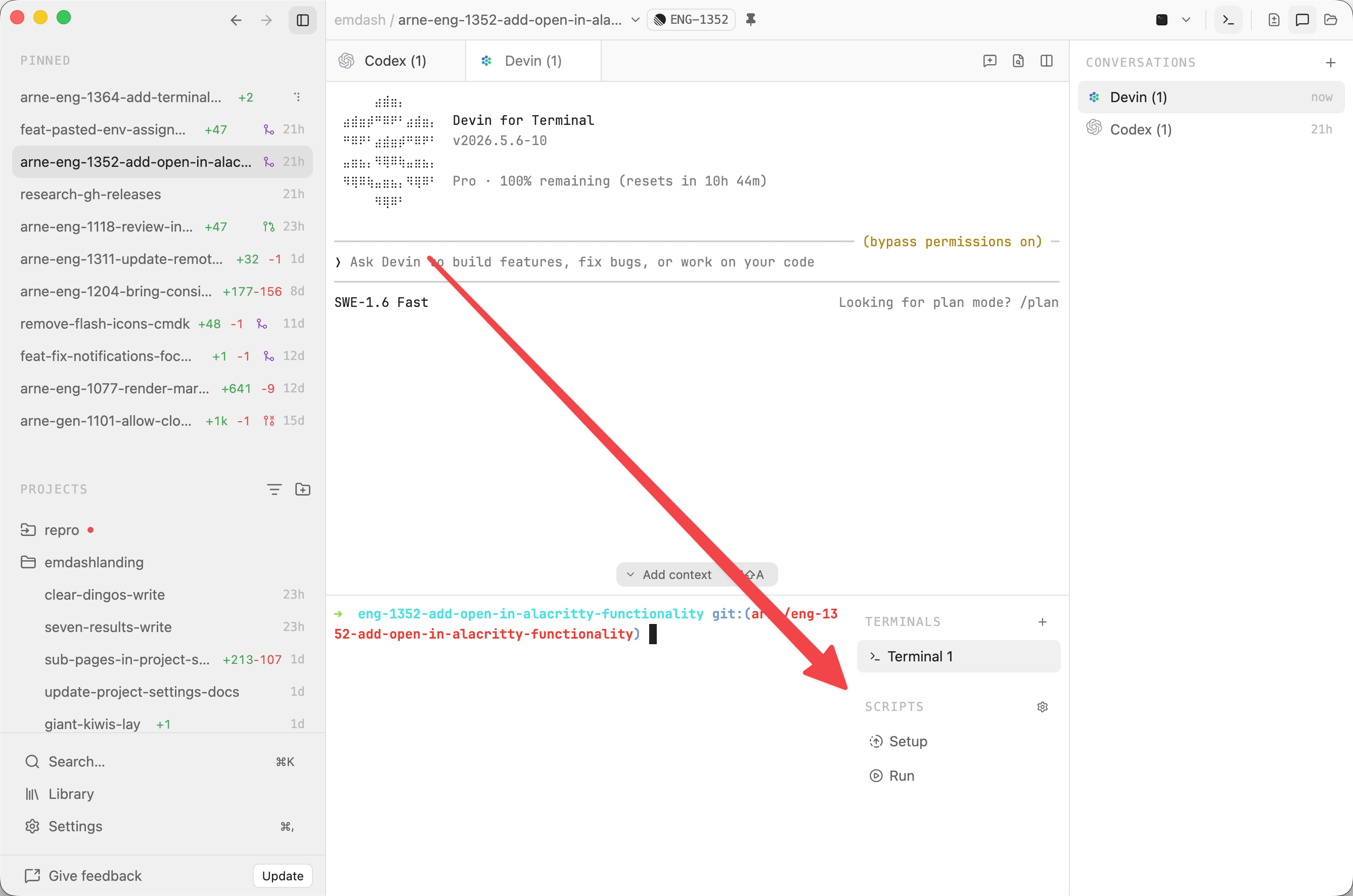
Setup and run script logs appear in the terminal drawer. Open it with ⌘J to inspect script output.
Precedence
Scripts and other shareable settings configured in Project Settings on your machine override respective values in .emdash.json. To use the shared .emdash.json value again, clear the local value in Project Settings.
Environment variables available to scripts
Task terminals, agent sessions, shell setup and lifecycle scripts receive these environment variables:
| Variable | Purpose |
|---|---|
EMDASH_TASK_ID | Stable unique task id |
EMDASH_TASK_NAME | Shell-safe task name slug |
EMDASH_TASK_PATH | Absolute task path |
EMDASH_ROOT_PATH | Absolute project root path |
EMDASH_DEFAULT_BRANCH | Resolved default branch, for example main or origin/main |
EMDASH_PORT | Base port for a 10-port range |
Port-aware run script
{
  "scripts": {
    "run": "PORT=$EMDASH_PORT DB_PORT=$((EMDASH_PORT + 1)) pnpm dev"
  }
}
Docker Compose example
services:
  db:
    ports:
      - '${EMDASH_PORT:-5432}:5432'
  app:
    environment:
      - DATABASE_PORT=${EMDASH_PORT:-5432}
Updating from older releases
In Emdash 1.1.15, project settings moved to local storage.
After updating, scripts or preserve patterns may look empty in Project Settings even though they still work. This is expected when those values are still defined in .emdash.json.
On first use after the update, Emdash migrates local-only settings from .emdash.json into local Project Settings. This includes settings such as worktree directory, default branch, base remote, push remote, tmux, and workspace provider.
Shared runtime settings continue to be read from .emdash.json:
preservePatternsshellSetupscripts.setupscripts.runscripts.teardown
Empty fields in Project Settings are not a reset by themselves. They only become local overrides after you save a value in the UI.