Passing Issues
Create tasks from connected issue trackers and support tools
Emdash can create tasks directly from issues. Select an issue in the Create Task modal, choose the branch to start from, and Emdash links the issue to the task so it is available as conversation context.
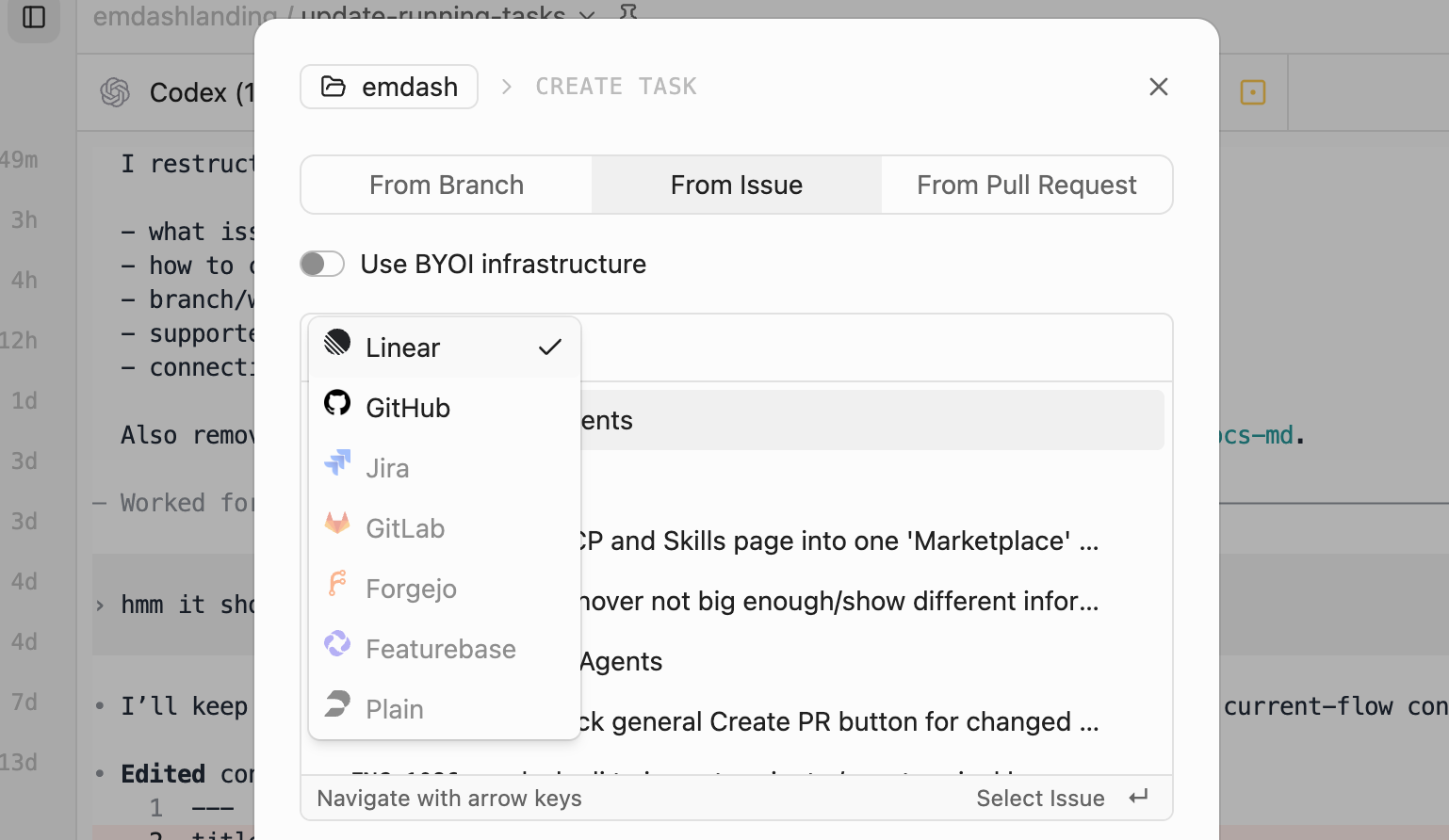
Create from an Issue
- Click Add Task or press
⌘N - Select From Issue
- Search for an issue and select it
- Choose the branch to start from
- Enter a task name or use the generated name
- Select a provider
- Click Create
The linked issue stays attached to the task and can be inserted into conversations as context. When inserted, Emdash includes the provider, identifier, title, URL, description, status, assignees, and project when those fields are available.
Branch and Worktree
Issue tasks use the same branch and worktree controls as branch-based tasks. By default, Emdash creates a task branch and worktree from the selected branch; you can also work directly on your checked out branch when you disable worktree creation.
For Linear issues with a branch name, Emdash can use Linear's branch name for the generated task name and task branch. Other issue providers use Emdash's normal task name and branch generation.
Supported Trackers
Emdash supports:
- Linear
- Asana
- Monday.com
- Trello
- GitHub Issues
- Jira
- GitLab
- Plane work items
- Forgejo
- Featurebase posts
- Plain threads
Missing your tracker? Open an issue or message us on Discord.
Connecting Your Tracker
Go to Settings -> Integrations to connect the tracker you use. GitHub Issues uses the GitHub account selected for the project. See GitHub Accounts to connect accounts and choose the account a project should use.
Linear
- Go to Linear Settings → Security & access → Personal API keys
- Create a new API key
- Paste the key in Emdash and click Connect
Asana
- In Asana, click your profile photo → My Settings → Apps
- Open Developer apps and create a personal access token
- Paste the token in Emdash and click Connect
When browsing issues, Emdash shows incomplete Asana tasks assigned to you from your primary workspace. Search uses Asana's task search for incomplete tasks in that workspace.
Trello
- Open Trello Power-Ups admin
- Create a Power-Up and copy its API key
- Generate an API token from the API key page
- In Emdash, paste the API key and API token
- Optionally add one or more board URLs, separated by commas or new lines
- Click Connect
Emdash lists and searches open Trello cards. If you add board URLs, Emdash searches only those boards; otherwise it searches the first 20 open boards available to your Trello account. When a card is attached to a task, Emdash includes the card description, board, checklists, and comments when those fields are available.
Monday.com
- Open the monday.com Developer Center API token tab
- Copy your API token
- In Emdash, paste the token and add one or more board URLs
- Click Connect
Emdash lists and searches items from the connected boards. When an item is attached to a task, Emdash includes the item details, Monday Docs description content, and recent updates when those fields are available.
Jira
- Go to Atlassian Account Settings → Security → API Tokens
- Create a new API token
- In Emdash, enter your site URL (e.g.,
https://yourcompany.atlassian.net), email, and token - Click Connect
GitHub Issues
To use GitHub Issues:
- Go to Settings -> Integrations -> GitHub
- Add a GitHub account with Emdash account / OAuth, GitHub CLI import, or device flow
- Open Project Settings and choose that account under GitHub account
GitLab
- In GitLab, go to User Settings → Access Tokens and create a personal access token with the
read_apiscope - In Emdash, enter your GitLab instance URL and token
- Click Connect
Plane
- In Plane, go to Profile Settings → Personal Access Tokens and create a token
- In Emdash, enter your Plane API base URL, workspace slug, and API key. For Plane Cloud, keep the default API base URL (
https://api.plane.so); for self-hosted Plane, enter your instance API base URL, for examplehttps://plane.example.com - Click Connect
Emdash lists and searches Plane work items. When a work item is attached to a task, Emdash includes its identifier, title, URL, description, status, assignees, project, priority, and labels when those fields are available.
Forgejo
- In Forgejo, go to Settings → Applications and generate a token with the
read:issuescope - In Emdash, enter your Forgejo instance URL and token
- Click Connect
Featurebase
- In Featurebase, go to Settings → Integrations → API and create an API key
- Paste the key in Emdash and click Connect
Plain
- In Plain, go to Settings → API keys and create an API key that can read threads
- Paste the key in Emdash and click Connect